How to Import Extrudr Material Profiles into PrusaSlicer
Want to print with Extrudr filaments and have a Prusa 3D Printer? Don't worry - our materials fit into every FDM-printer. To save time figuring out the right settings for the perfect print results, download our tested material profiles now. Then import them into the PrusaSlicer.
Don't know how? Here's a guide for importing the material profiles into the PrusaSlicer.
Step by Step - Guide
Step 1: Download the Profile
Go to our website and download the material profile for your printer and filament.
👉 Download Extrudr Material Profiles
Step 2: Open PrusaSlicer
Launch PrusaSlicer on your computer.
Step 3: Import the Profile
- In the top menu, go to File → Import → Import Configuration.
- Select the file you just downloaded.
- The new Extrudr profile will now appear under the Filament Settings tab.

Important to Note
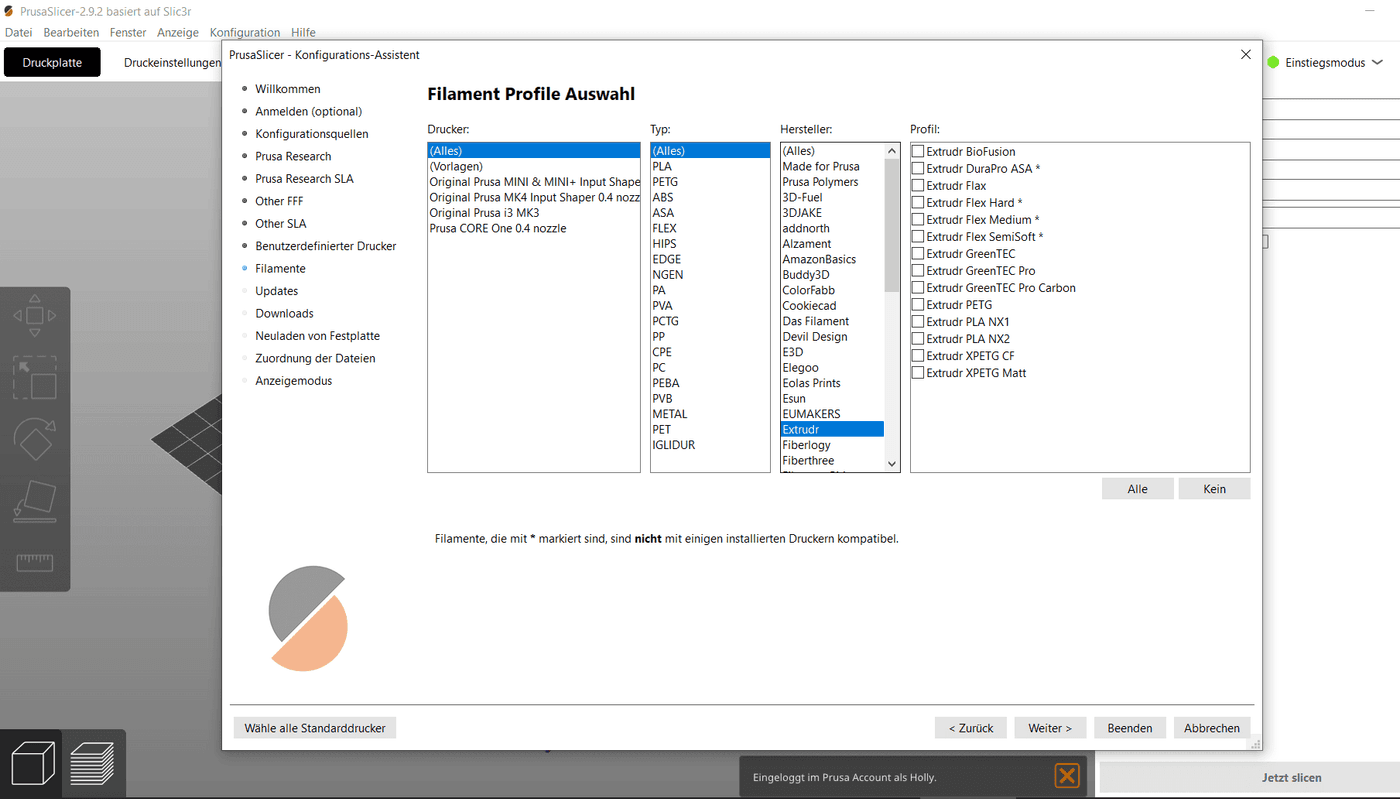
When setting up PrusaSlicer, you may notice that Extrudr filaments already appear in the configuration wizard.
These profiles were created by Prusa and are not directly from us. While they can be a starting point, we recommend using our official Extrudr material profiles for the most accurate and reliable results. Our versions are tested in-house and fine-tuned for each material to ensure maximum performance and print quality.