

Beginner’s Guide to 3D Printing: Easy Tips and Tricks for Your First Prints
Getting started with 3D printing is exciting. But where do you start? It isn’t the same as printing a simple document. Instead, 3D printing’s settings configuration is a little more complex. You need to understand things like slicer configurations, temperature tuning and hardware adjustments. On top of that, choosing the right printer, the right filament, and knowing what to print first as a beginner can be challenging. The good news is that once you have the right setup, everything starts to fall into place. This guide will give you just that confidence in 3D printing. We’ll walk you through all you need to know.
Let’s start with the basics: You’ll need a reliable 3D printer and a high-quality spool of filament.
Choose a Reliable, Budget-Friendly Printer
You don’t need a high-end printer to get good results. We recommend starting with an easy to set up and budget-friendly printer that is compatible with beginner-friendly filaments such as PLA, PETG and ASA, and is supported by a large user community. To avoid unnecessary problems along the way, you should also ideally invest in a printer that includes a heated print bed and open software support like Cura, PrusaSlicer, or BambuLab.
We recommend the following beginner printers:
Bambu Lab A1 Mini compact, user-friendly, auto-calibrating
What it offers: Extremely easy to set up, excellent print quality right out of the box, quiet, integrated software experience
Best for: Beginners who want plug-and-play printing without tweaking or troubleshooting
Creality Ender 3 (V2, Neo, or SE)
affordable, modifiable, huge support online
What it offers: Is customizable and budget-friendly.
Why it’s great: Large online community with many tutorials.
Best for: Budget-conscious beginners who want to learn by doing.
Anycubic Kobra 2
quick assembly and auto-leveling for easy setup
What it offers: Fast setup with auto-bed leveling and quick assembly.
Why it’s great: Less configuration which makes 3D printing easier.
Best for: Beginners who immediately want smooth, easy printing.
Prusa Mini+
more premium, compact
What it offers: Excellent print quality and reliability.
Why it’s great: Minimal tweaking, great support and software.
Best for: Users looking for a long-term investment.
With a reliable printer in place, the next step is just as important: choosing the right filament. Let’s look at the best materials to start your 3D printing journey.
Best Filaments for Beginners: PLA, PETG, ASA
Not all filaments are equally beginner friendly. Start with materials that are forgiving, widely supported, and well-documented. Some are easier to print with than others, offering smoother prints, fewer errors, and more consistent results.
Here are the three best filaments for beginners:
- PLA: The classic go-to for simple, low-warp prints.
- PETG: A more durable and flexible option with slightly more advanced handling.
- ASA: Ideal for outdoor and technical parts, with added resistance to sunlight and weather.
Important note: PLA works on almost all 3D printers. PETG and ASA, however, need a bit more care for good results. Here, we again advise that you invest in a printer with a heated bed and a good build plate adhesion. Also make sure to store the filaments in a dry place when not in use. This prevents issues like stringing or brittleness caused by moisture.
But moisture isn’t the only culprit when it comes to printing problems. To avoid a whole range of issues, we strongly recommend you choose high-quality filament because poor filament quality can lead to problems like print clogging, stringing, warping, or inconsistent layering despite the use of a perfectly calibrated printer. What does this mean for your print?
Clogging: The filament doesn’t melt or flow properly, instead getting stuck in the nozzle and stopping the print.
Stringing: Thin, messy threads appear between parts of the print, like cobwebs, because the filament is too runny or inconsistent.
Warping: Corners of the print lift or curl, especially on larger prints, because the material doesn’t stick well or cools unevenly.
Inconsistent layers: The print ends up with rough or uneven surfaces because the filament thickness or quality changes as it prints.
To avoid these issues, we’ve carefully developed our PLA, PETG, and ASA filaments to be easy to use, print reliably, and give you the results you’re aiming for, right from the beginning. Try out these three Extrudr filaments for your first prints to get the hang of 3D printing:
PLA NX2
What it’s made of: A bio-based polymer (mostly cornstarch)
Why it’s great: It prints effortlessly with clean lines and no warping. The
matte finish of the NX2 MATT filament gives your print a professional look
straight off the bed.
Ideal for: Beginner- and design-focused projects.
PETG
What it’s made of: A glycol-modified version of PET (plastic in water
bottles)
Why it’s great: It offers better flow and easier handling while maintaining
its signature strength and flexibility.
Ideal for: Functional parts that need to be reliable and
durable.
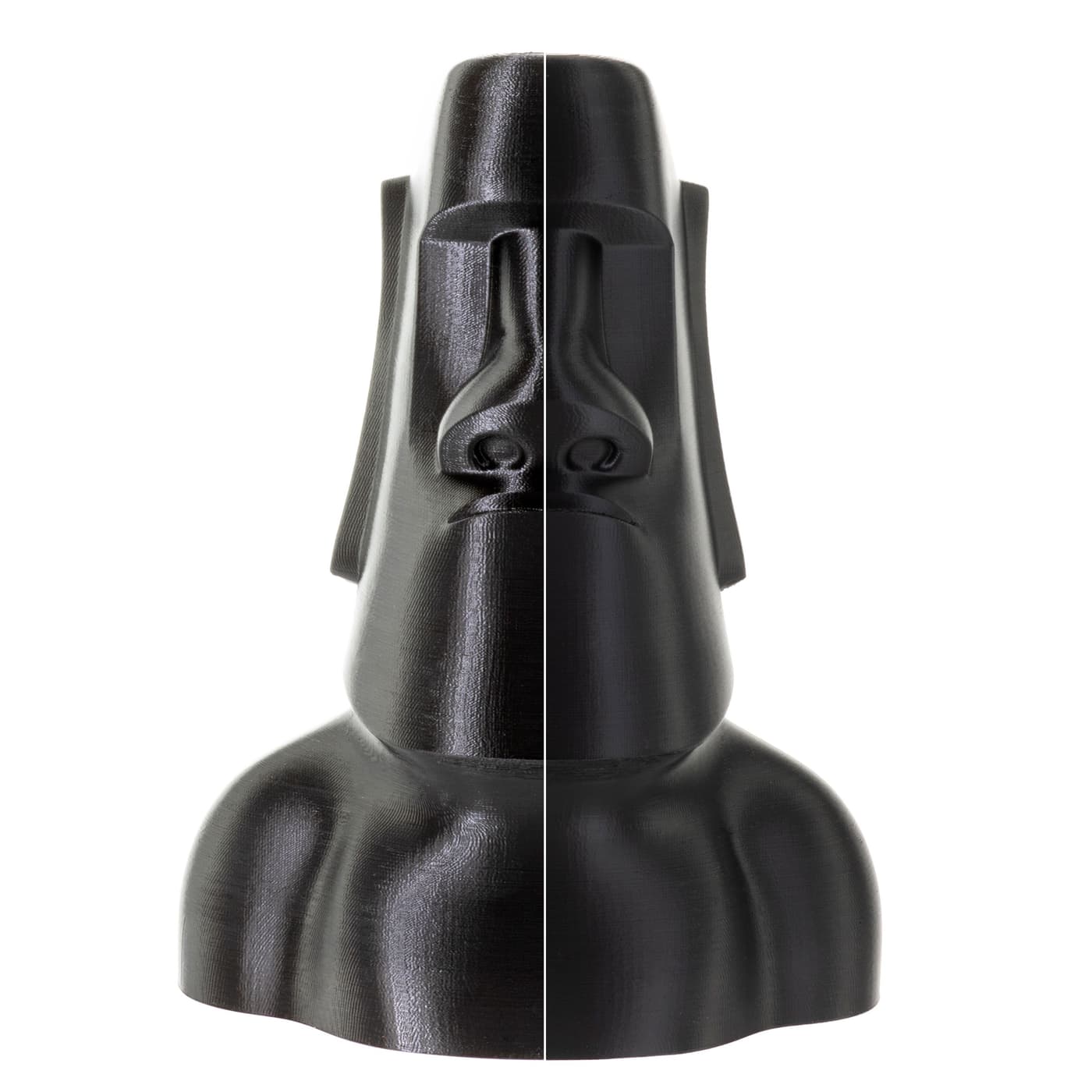
ASA
What it’s made of: A high-performance engineering plastic similar to
ABS, but UV-resistant.
Why it’s great: Re-engineered for ease of use while offering advanced
qualities. Unlike standard ASA, it prints with fewer complications but still
offers UV- and weather-resistance as well as increased strength.
Ideal for: Outdoor use and demanding parts that need to resist
sunlight, weather, and wear.
By starting with these high-quality filaments, you remove one of the biggest reasons why prints don’t turn out as planned. When something still goes wrong, it’s much easier to trace the issue back to your print settings. This is where material profiles really help.
What Are Material Profiles?
If you’ve heard of “material profiles” but aren’t sure what they are – don’t worry, you’re not alone. Simply put, a material profile is a set of pre-configured settings tailored for a specific filament and printer combination. It includes parameters like nozzle temperature, bed temperature, cooling speed, retraction values, and print speed. These settings are used inside your slicer software (like Cura, PrusaSlicer, or Bambu Studio) to convert your 3D model into precise instructions your 3D printer understands. Because, yes, not all 3D printers are the same.
Just as filaments are made up of different material components, different printers have different hardware setups like hotends, nozzles, bed surfaces, and cooling systems. The optimal settings can, therefore, vary from one printer to another.
To help you print with our filaments, we have developed pre-tested material profiles for most of the popular printers. These profiles will help you get reliable results without needing to fine-tune everything yourself, which is especially useful for your first print projects.
Tip: If your printer isn’t listed, you can still use our material profiles as a solid reference point to fine-tune as needed. Here’s a basic setup that works surprisingly well with most 3D printers and our PLA NX2 MATT:
- Nozzle Temperature: 200–210°C
- Bed Temperature: 60°C
- Layer Height: 0.2 mm (good balance of quality and speed)
- Print Speed: 50 mm/s
- Cooling Fan: 100% after the first few layers
These settings offer a good balance between quality and speed and are perfect for early experiments. As you gain confidence, you can begin customizing things like layer height or support structure to match your model.
But what should you print first? You don’t need any design skills to get started. These days, there’s a whole world of ready-to-print 3D models, just waiting to be explored.
Where to Find 3D Models to Print
One of the most exciting parts of 3D printing is finding out what you can make. Whether it’s something practical like a cable holder or something decorative like a mini sculpture, you’ll find thousands of free (and paid) models online, created by designers and shared with the community.
Here are a few trusted sites:
- Printables – clean interface, lots of beginner-friendly tools
- Thingiverse – one of the largest collections of free STL files
- Cults3D – artistic and professional designs
You’ll find endless inspiration online, but not all models are beginner friendly. That’s why we recommend starting with small utility prints like phone stands, desk organizers, or tool clips to test tolerances and get used to the printing process – without using too much filament or time.
What to Watch Out for in the Beginning
You’ve got the printer, the filament, the print model, and the material profile ready. But despite following the guide, your print still doesn’t turn out right. And that’s okay! It’s normal to run into a few challenges at the start. That’s how you learn. The good news is most first-time issues are easy to fix once you know what to look for.
Uneven first layer? Make sure your print bed is properly leveled. Most printers include either manual knobs or automatic leveling tools. Also, check that the surface is clean and free of dust or leftover filament.
Print not sticking to the bed? If your print isn’t holding onto the bed during the first few layers, try adding a bit of extra adhesion. A simple glue stick works well on most surfaces, or you can enable a brim in your slicer settings – a thin outline around your part that helps anchor it to the bed. Also double-check your bed temperature and make sure the first layer isn’t too far from the surface.
Getting stringy or messy prints? Fine filament strings between parts or corners usually indicate moisture in your filament or that your retraction settings need adjusting. Store your filament in a dry place, ideally in a sealed bag with a desiccant (those small moisture-absorbing packets), or dry your filament before using it. By pulling back the filament slightly during travel moves in your slicer (retraction), you can also reduce oozing between moves.
Nozzle getting clogged? If your filament stops extruding or comes out unevenly, your nozzle might be partially blocked. This can happen through dust, burnt filament, or inconsistent material. Try gently cleaning the nozzle with a cleaning filament or a cold pull and always cut the end of your filament cleanly before loading – this helps it feed more easily and reduces jamming. Also, make sure the nozzle is properly preheated before inserting new filament. Using high-quality filament also reduces the risk of it happening in the first place.
Our Advice: Keep It Simple, Keep It Fun
The most important thing to remember is that you don’t need to know everything before you begin. Just start with the basics:
- A reliable printer
- A good PLA spool (like Extrudr PLA NX2)
- A beginner friendly model you’re excited to print
- The fitting material profile
- And a little curiosity and willingness to fine-tune when things get rough
At Extrudr, we make high-quality, sustainable filament spools at our production site in Lustenau, Austria, using clean and controlled processes. We believe good materials make great learning possible. If you're just getting started, we’re here to make those first steps easier.
Ready to print something great?
Explore beginner materials on extrudr.com
Get material profiles & help at https://extrudr.com/shop-eu/page/material-profiles/?locale=en
We’re here to help you every layer of the way!