
• Filaments
  • Accessories
  • Inspirations
  • 3d Print Hub
  • B2B
  • Help & Contact
  • Our Brand
Shipping
FAQ
Product Catalogue
Data Sheets
Material Profiles
Contact
Story
Career At Extrudr

Sign up for newsletter

Receive news about new products, inspiration and discount campaigns.

Mastercard logoPayPal logoVisa logoApple Pay logoGoogle Pay logo
FD3D GmbH 2026. All rights reserved.
Imprint
Privacy Policy
GTC
Cancel the contract
How to Import Material Profiles into Bambu Studio
Back to overview

How to Import Material Profiles into Bambu Studio

June 21, 2024
Spread the word

You can download ready-to-use Extrudr material profiles for Bambu Lab, Prusa, and Ultimaker printers directly from our Material Profiles page.

Importing Material Profiles in Bambu Studio

1. Open your Bambu Lab Slicer.

Select: File → Import → Import Configurations
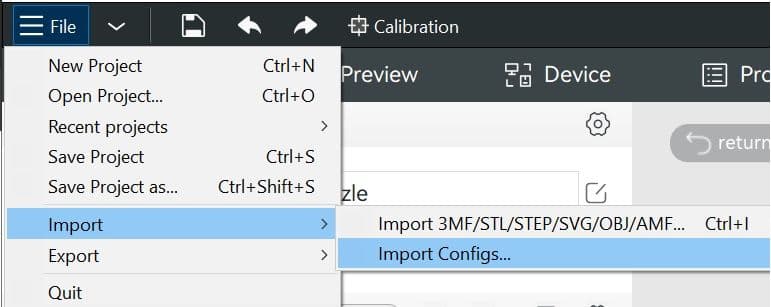
Import Filaments.jpg

2. Select the relevant file or files.

You can easily import more than one file at a time.
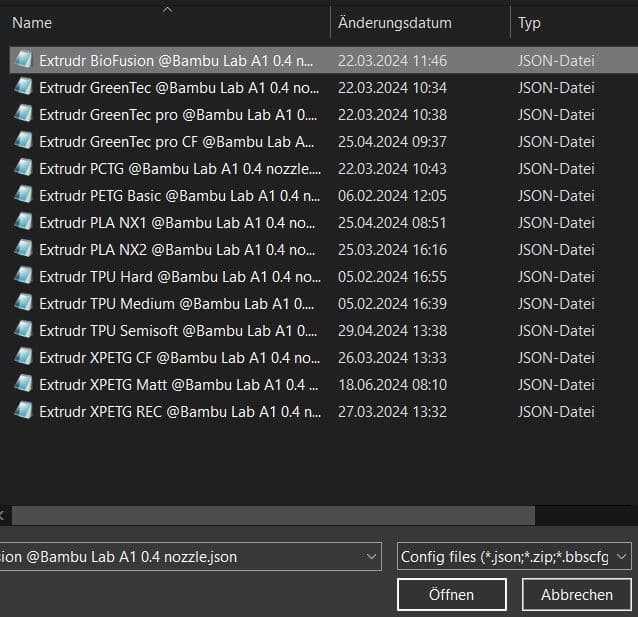
Import Materialprofile.jpg

3. A pop-up message will appear—click “OK.”

This message always appears when loading a profile that does not originate from Bambu Lab into the slicer. The profile will then be saved under “Custom” in your user presets.
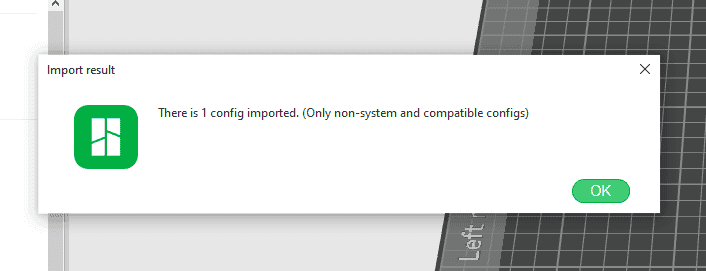
pop-up bambu.PNG

4. The profile is ready to be used. 

You can find it under Project Filaments → Custom 
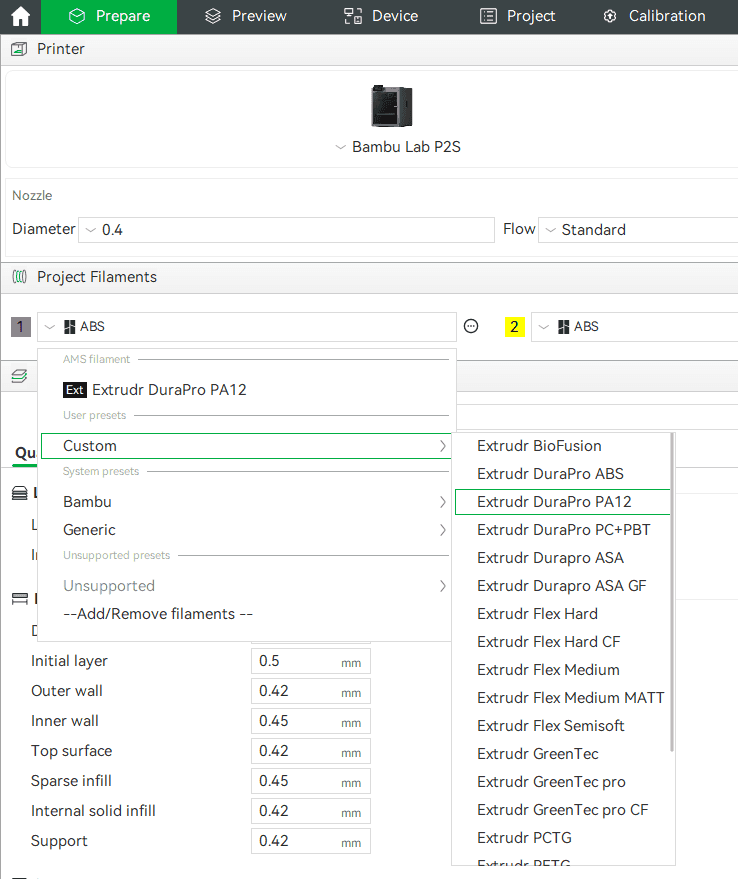
selecting filament-bambu.PNG

EXTRA TIP:

How do I see all the filaments I have imported at a glance?

Click "Settings"-icon from Project Filaments and select Custom Filaments.

By clicking the pen icon, you can view all filament presets for the selected filament and edit or delete them as needed.
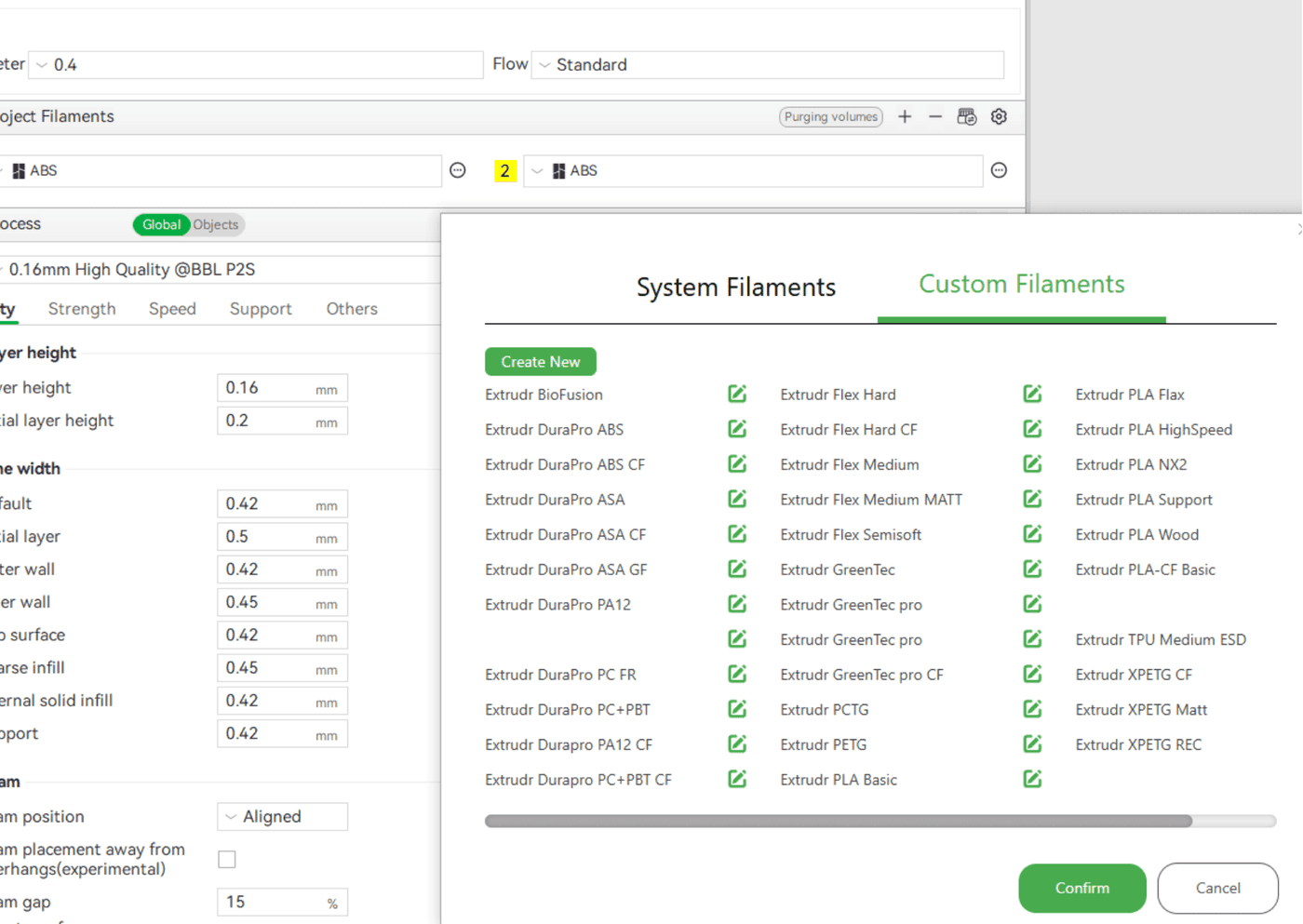
Bambu-custom.png

Have a great time printing!

Back to overview
Spread the word

Choose a different country to view content for your location and shop online.

  • FREE SHIPPING ON 5+ ITEMS (inside EU)•
  • Filaments
  • Accessories
  • Inspirations
  • 3d Print Hub
  • B2B
  • Help & Contact
  • Our Brand